Install DSM 7.2 (DS 918+) on J3455(暴风二期)
Refer the document
- https://divineengine.net/article/installing-synology-dsm-7-with-automated-redpill-loader/
Download arpl-i18n
- https://github.com/RROrg/rr/releases
Download balenaEtcher used to flash the rr.img on the USB disk
- https://etcher.balena.io/#download-etcher
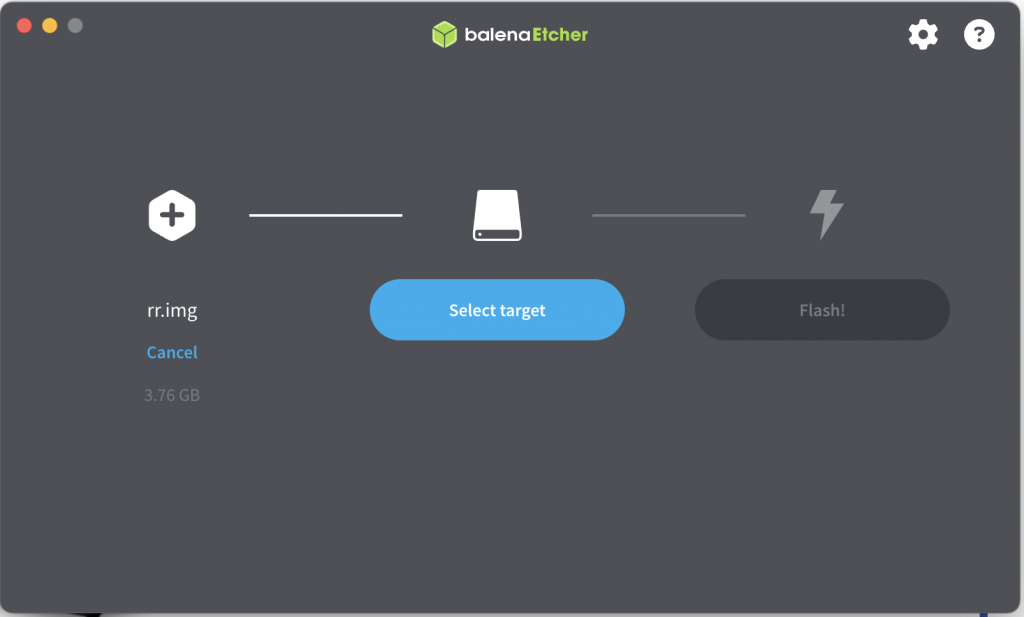
Build the loader
Then boot the USB disk, and open in browser
- http://192.168.1.3:7681/
We can do
-
Set the command line with SN/MAC
-
Compile the bootloader
-
Then start with bootloader
It may take up to 5 mins to get the server back, we can use ping to monitor it live or not
`ping 192.168.1.3
ping 192.168.31.194`
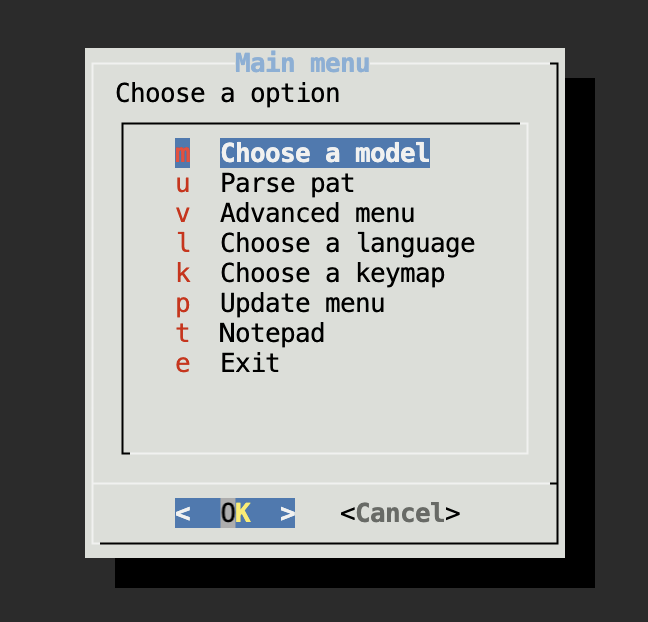
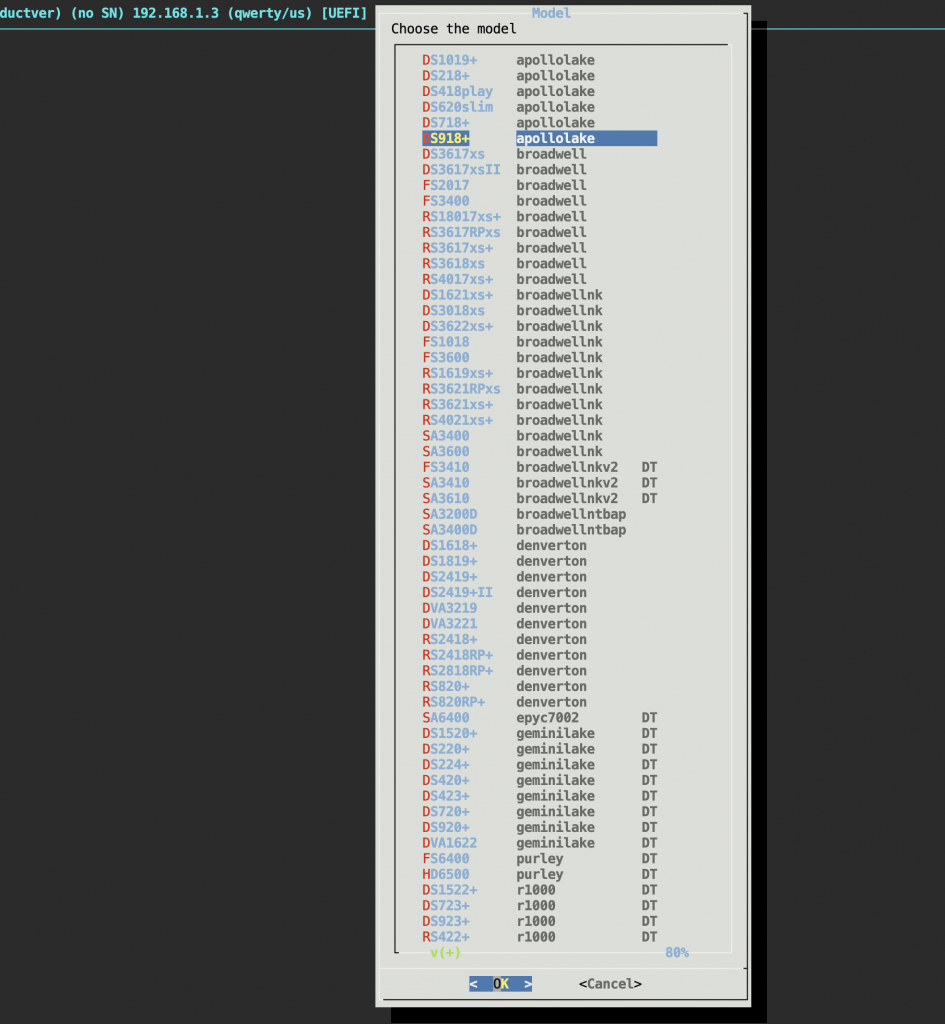
Choose version
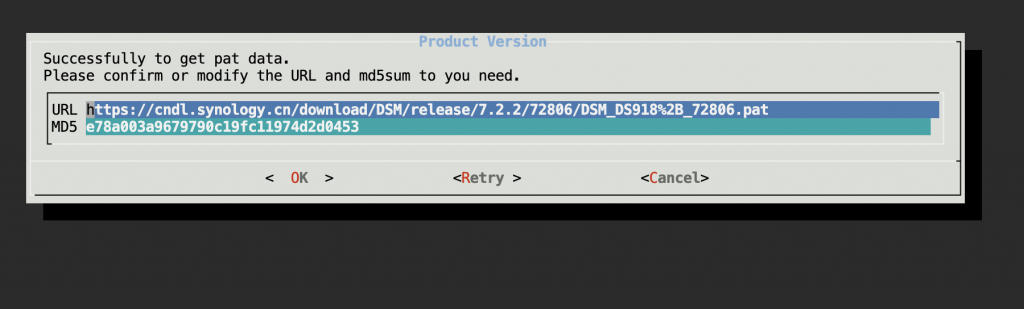
[Optional]Commandline menu-> define SN/MAC
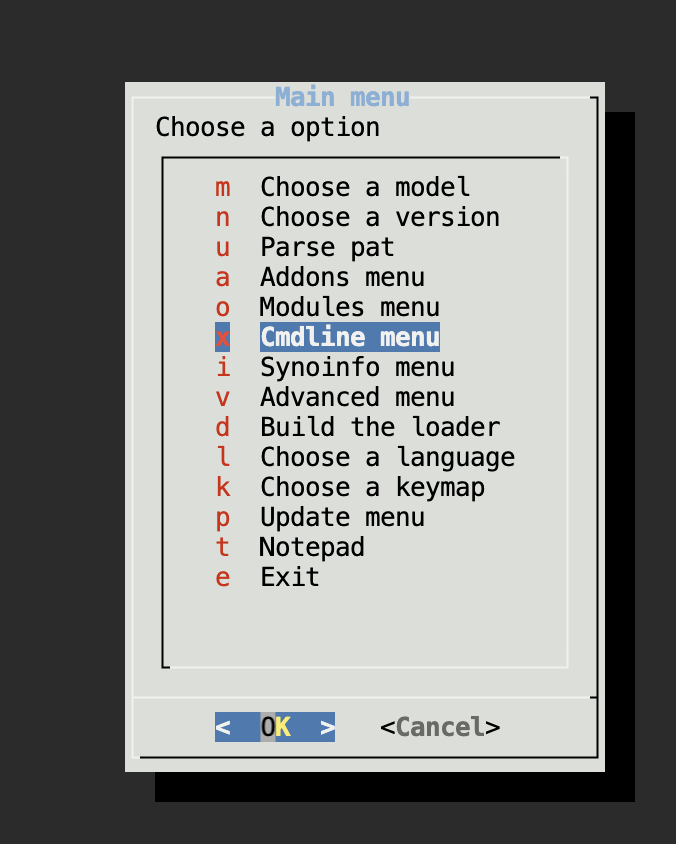
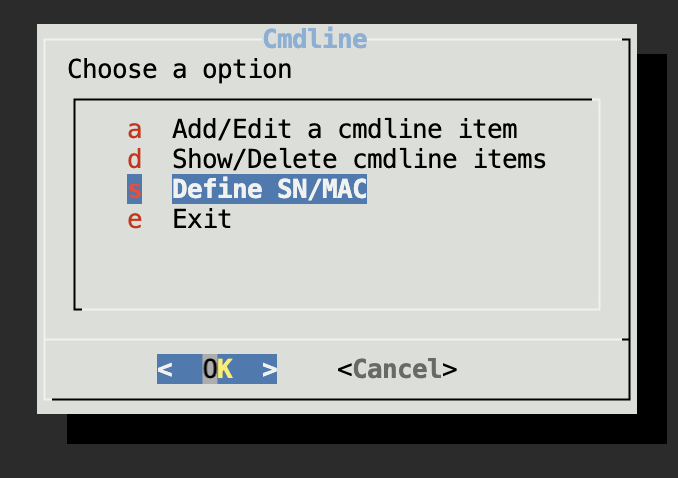
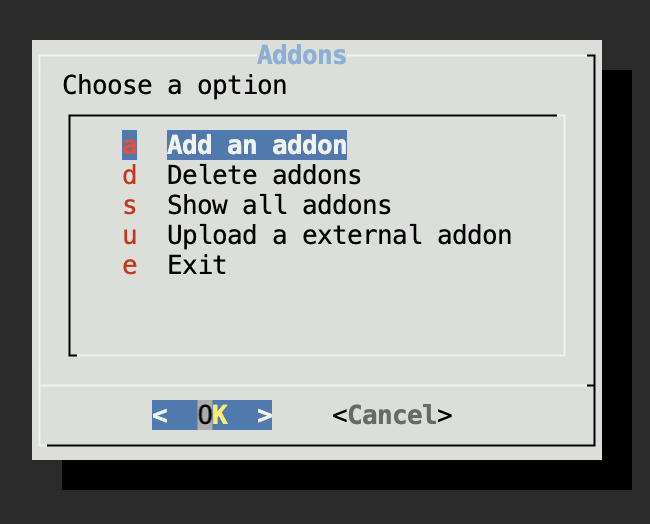
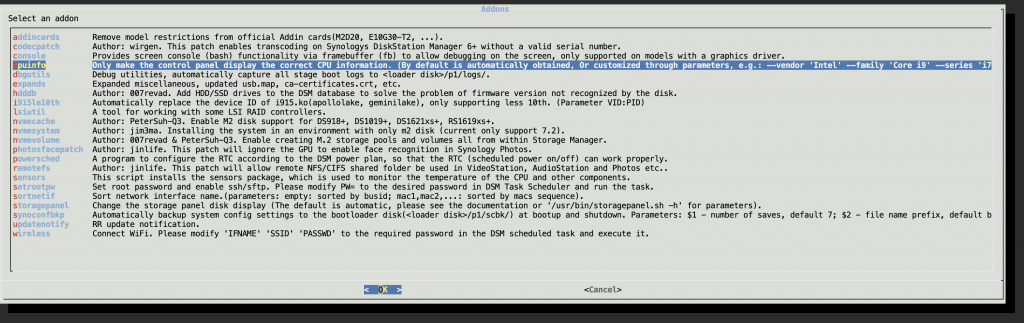
Add Addons
Build the loader
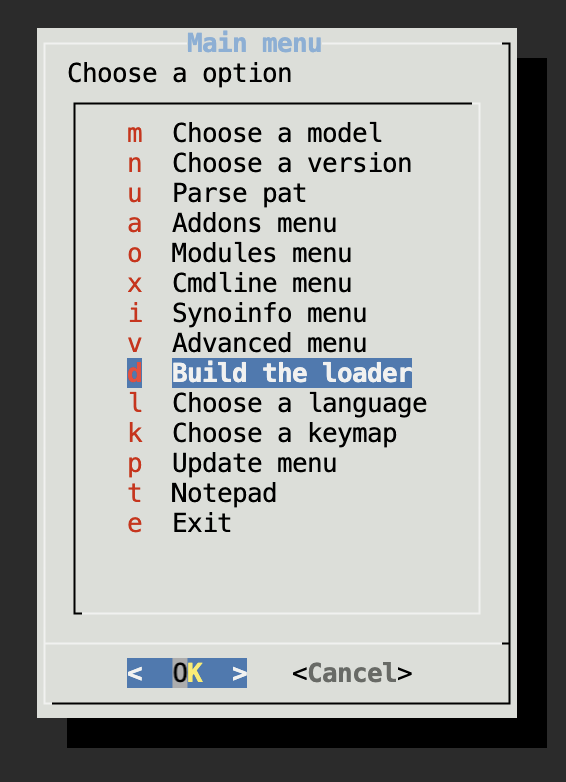
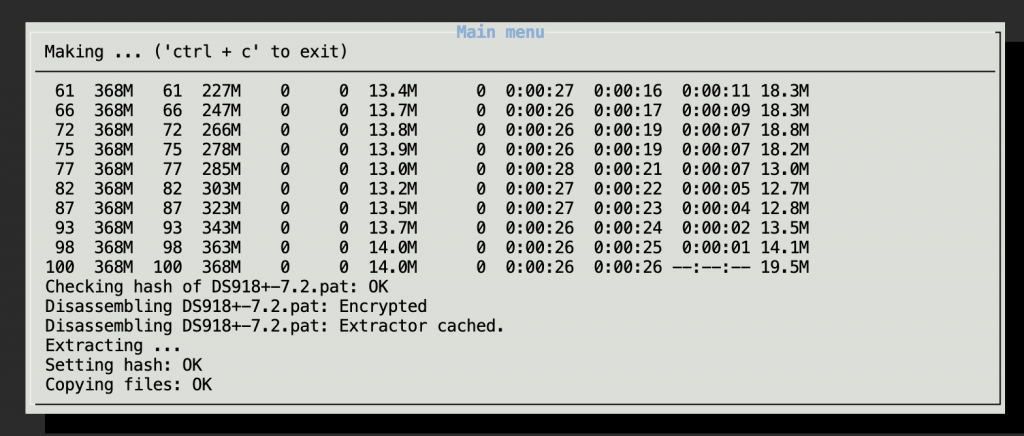
After the build progress finished it will back to the main menu, then boot the loader.
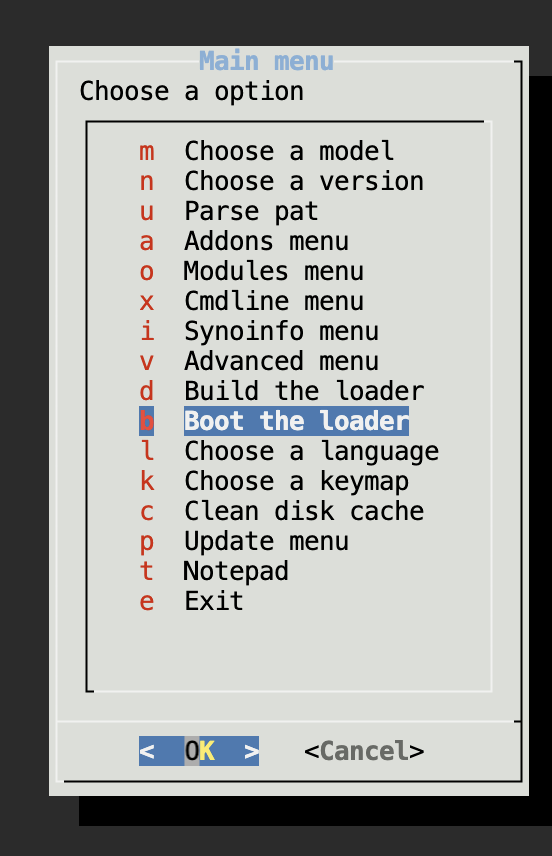
Install the DSM
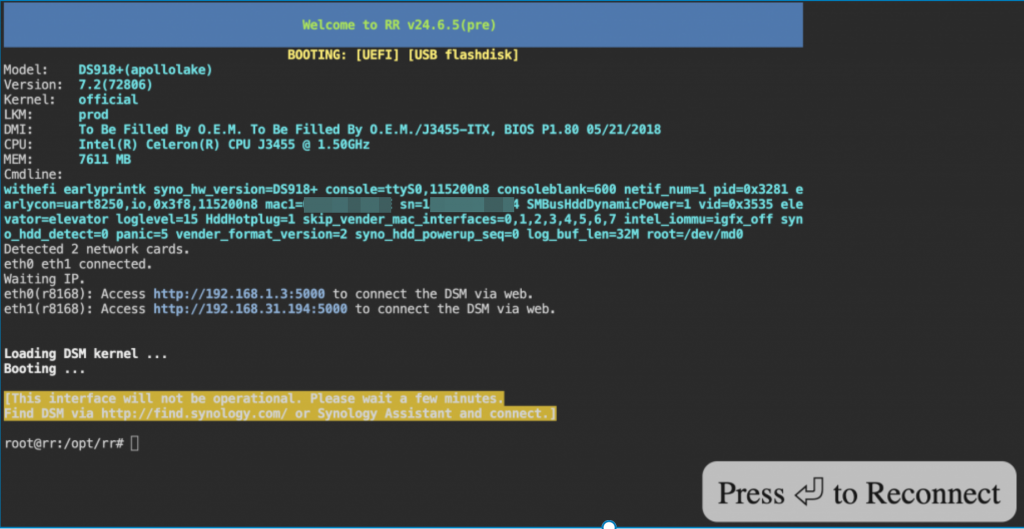
When the server go alive, open the link, the follow the guide to Install DiskStation Manager step by step
- http://192.168.1.3:5000/web_index.html
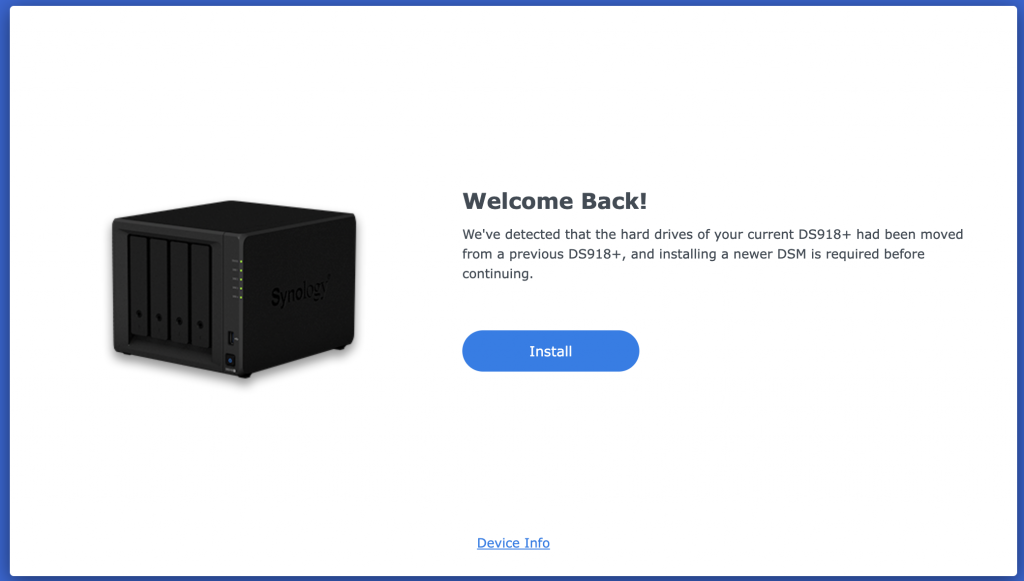
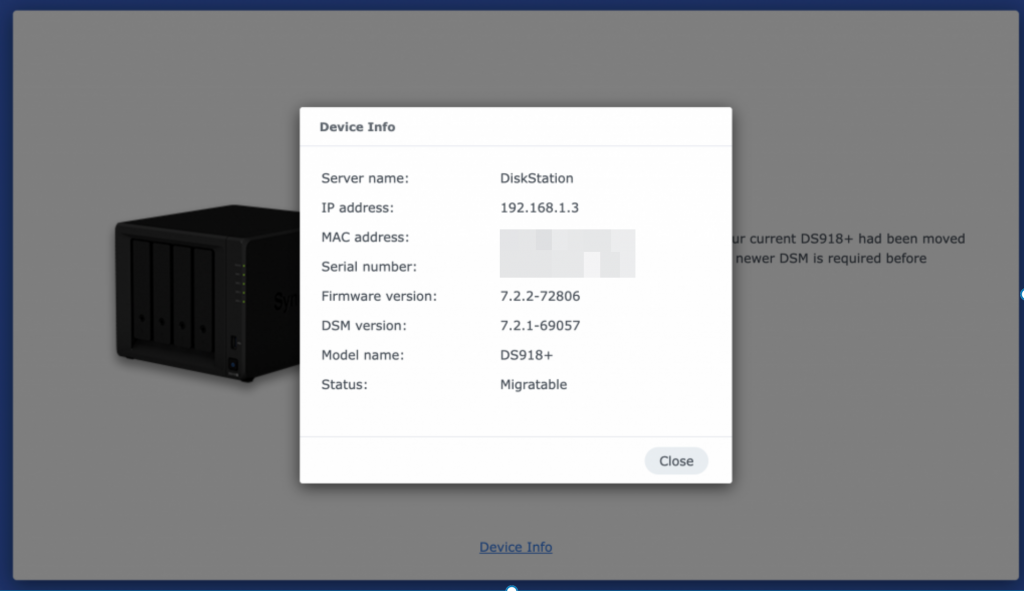
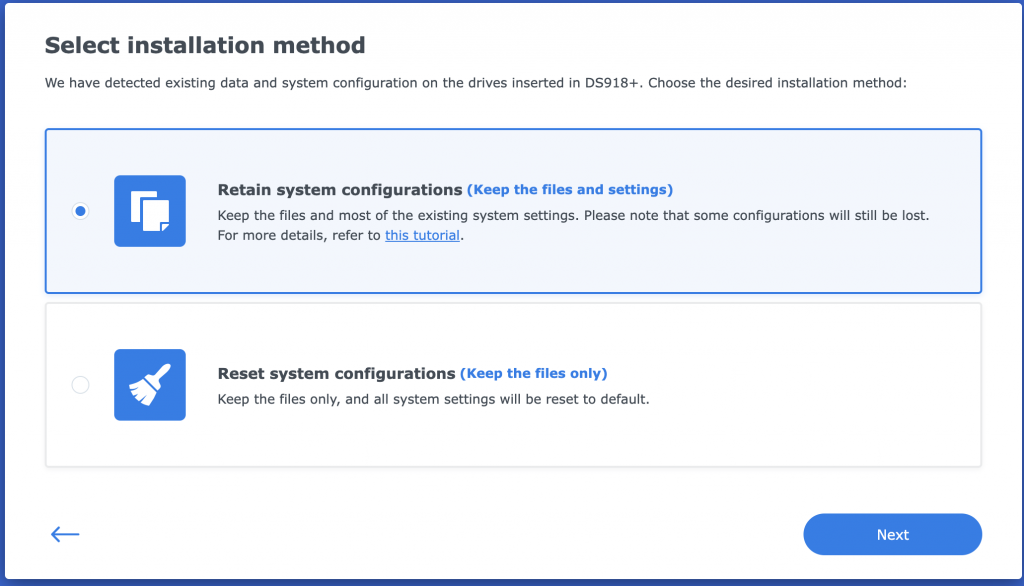
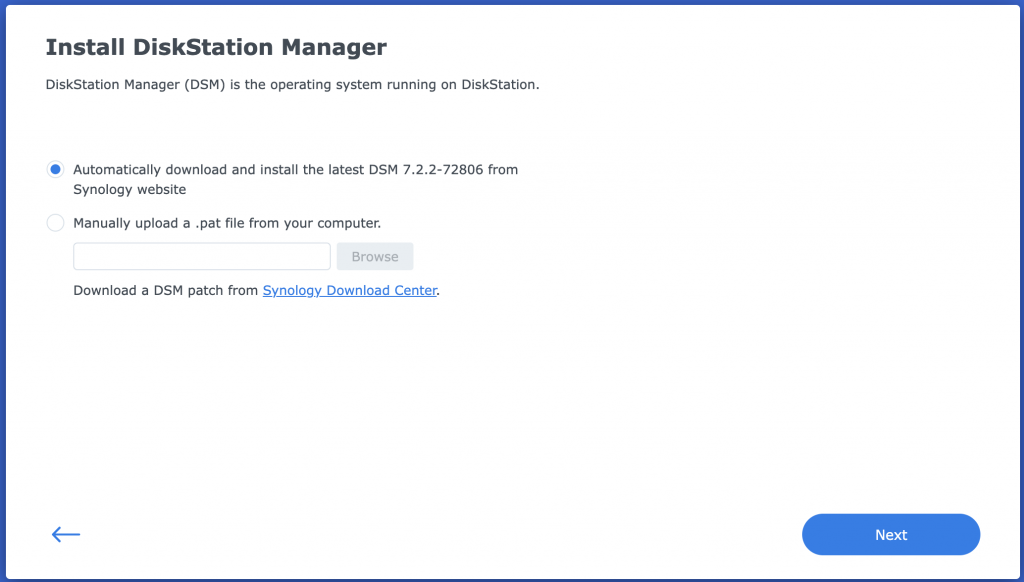
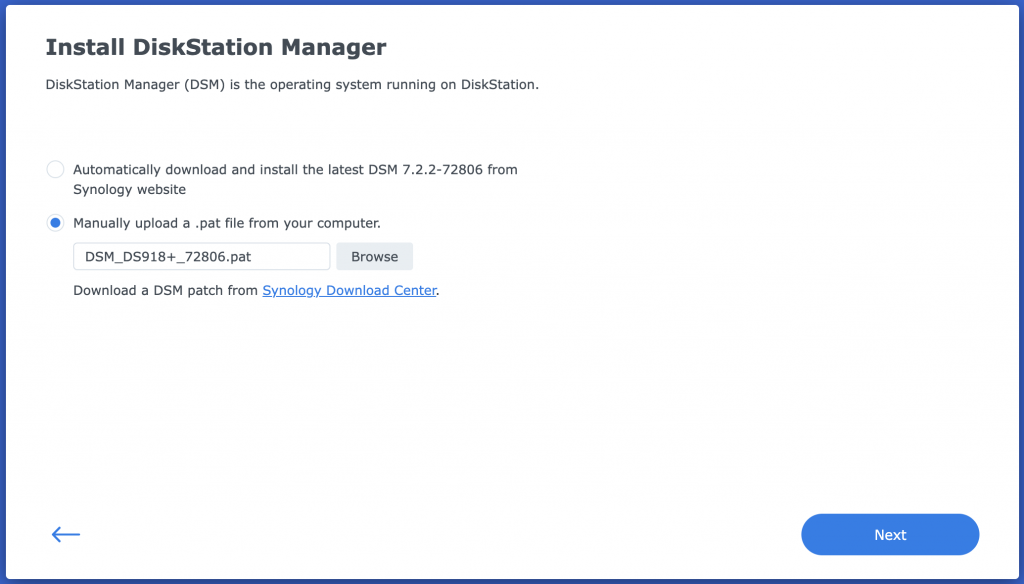
Here we can use the pat file download during the bootloader compiling.
Troubleshooting
-
Can’t find the server and ping ip, refer to the solutions
-
https://rrorg.cn/archives/issues
-
https://mi-d.cn/7303
-
https://github.com/RROrg/rr/issues/1894
-
https://github.com/RROrg/rr/issues/175
-
Solutions I tried for J3455
-
- Disable serial port in Bios
-
- Kernel switch: Power -> kexec
-
- 直接启动
-
File is broken
- https://github.com/RROrg/rr/issues/1294